Setting up your team in Mitte
Creative work is a team sport. Mitte makes your team faster, with everyone on one shared plan, one pool of credits, and real-time collaboration.
Create a team, invite the people you work with, share your assets, and set optional spending limits per team or per member.
Here’s how, step by step:
Step 1. Open team settings
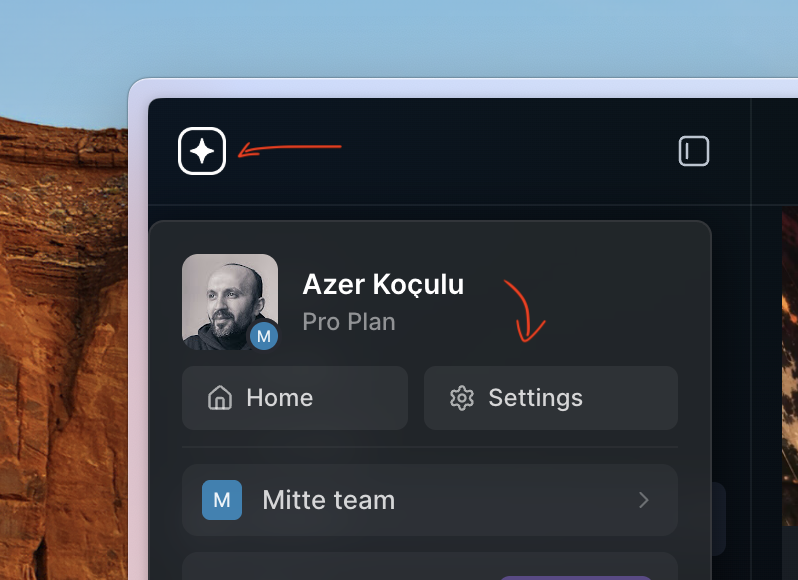
In the app dashboard, click the Mitte logo on the top left. In the dropdown, click the “Settings” menu.
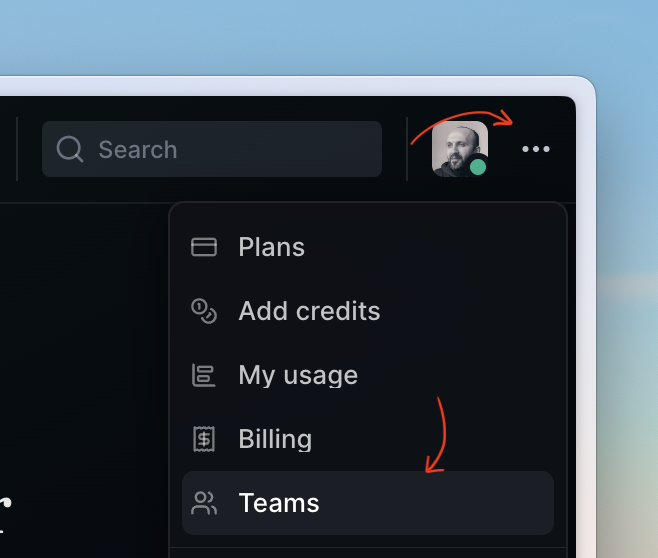
Optionally, you can hit the three-dot menu on the top right in the home view, then click the “Teams” link.
Step 2. Create new team
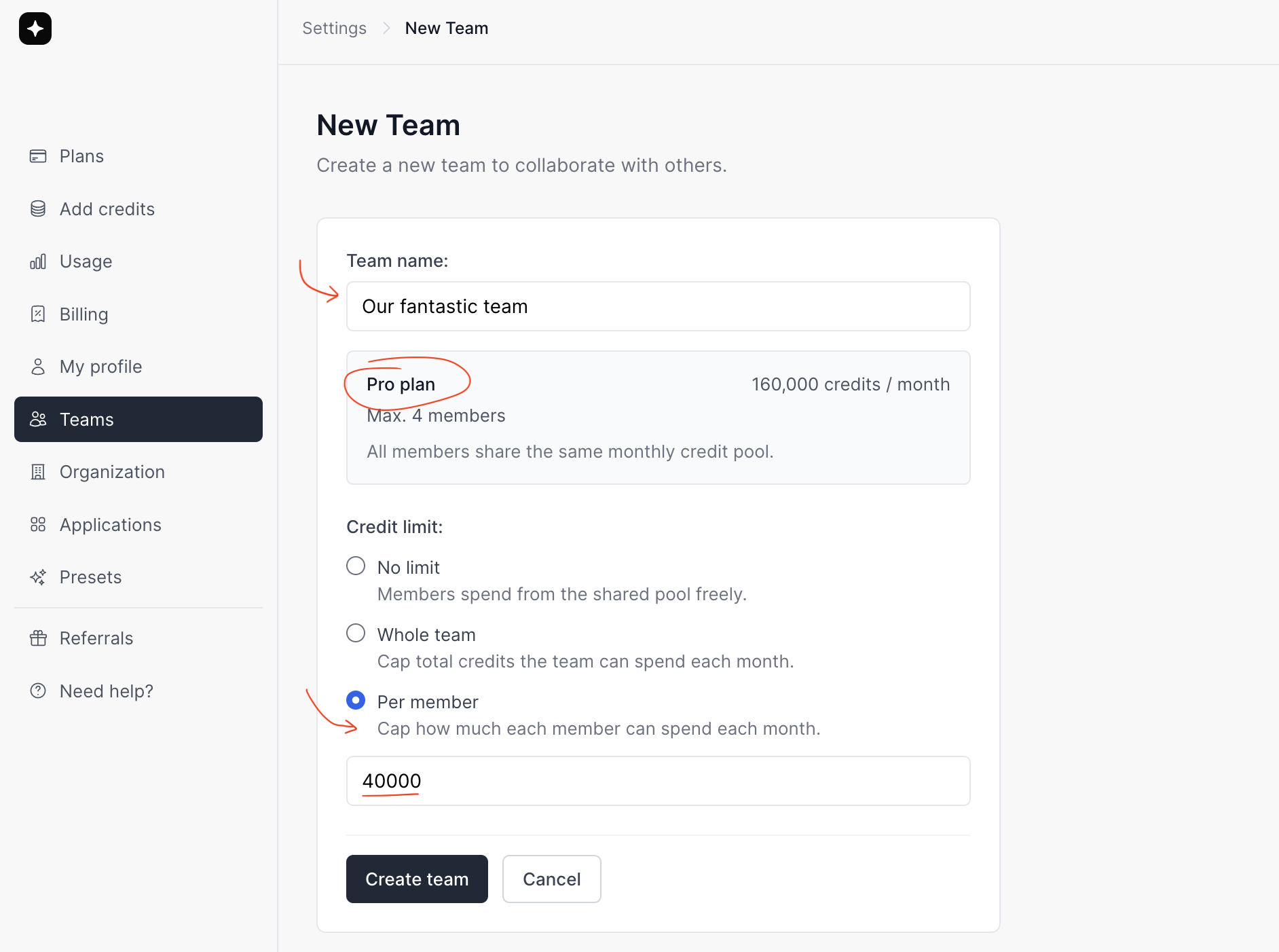
If you’re on a plan that supports teams, the “Create Team” button will be enabled. Hit the button and set:
- Name of your team
- Confirm your plan. This plan will be the shared credit pool.
- Credit limits: per entire team or per member.
Step 3. Add people to your team
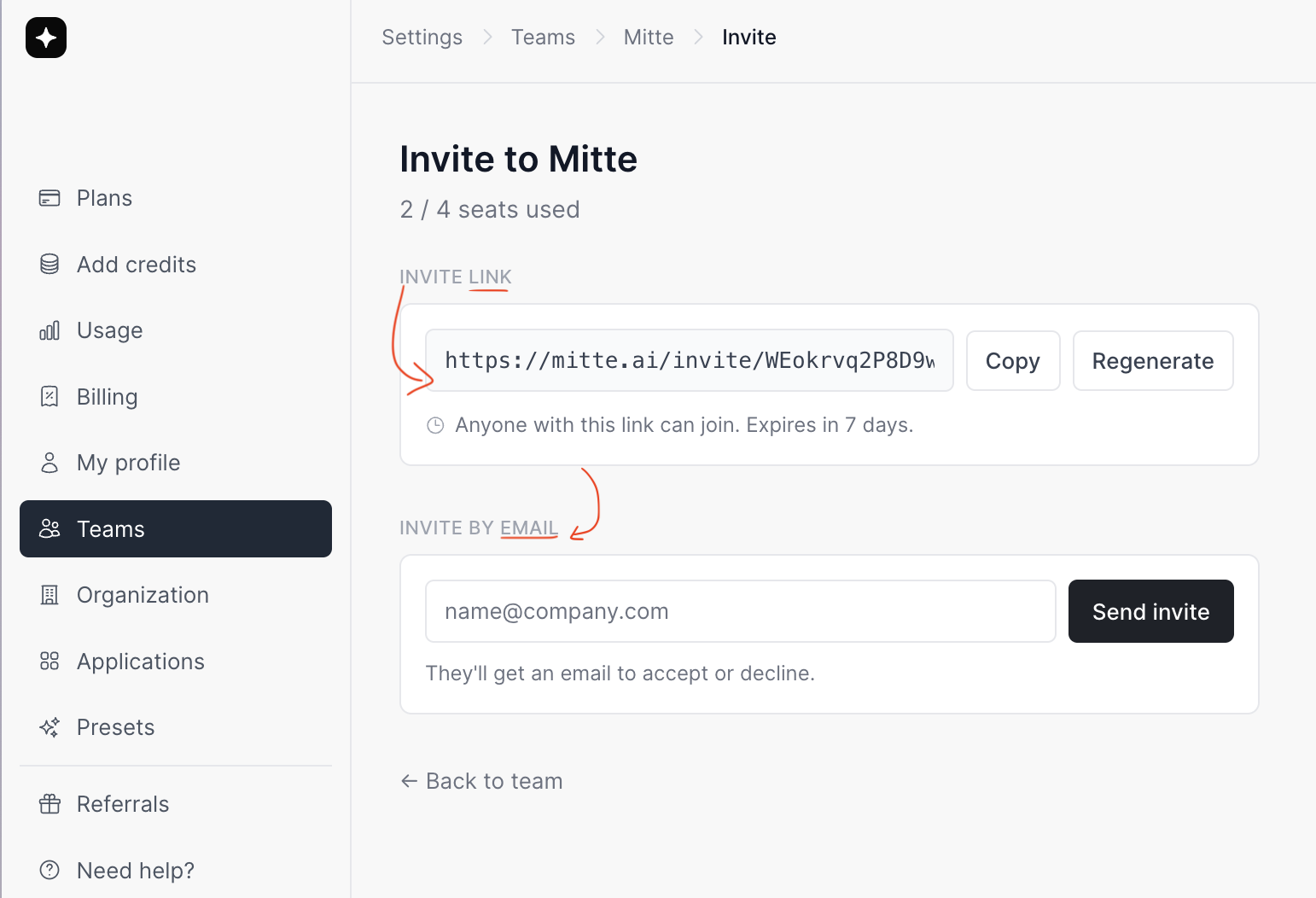
To invite new members, share the link or invite them by email.
The invited users don’t have to be Mitte users yet. Once they follow the invite and sign up, they’re automatically added to the team.
Step 4. Manage your team
On your team page, you’ll find the list of members. You can add or remove people, and make them admins of your team.
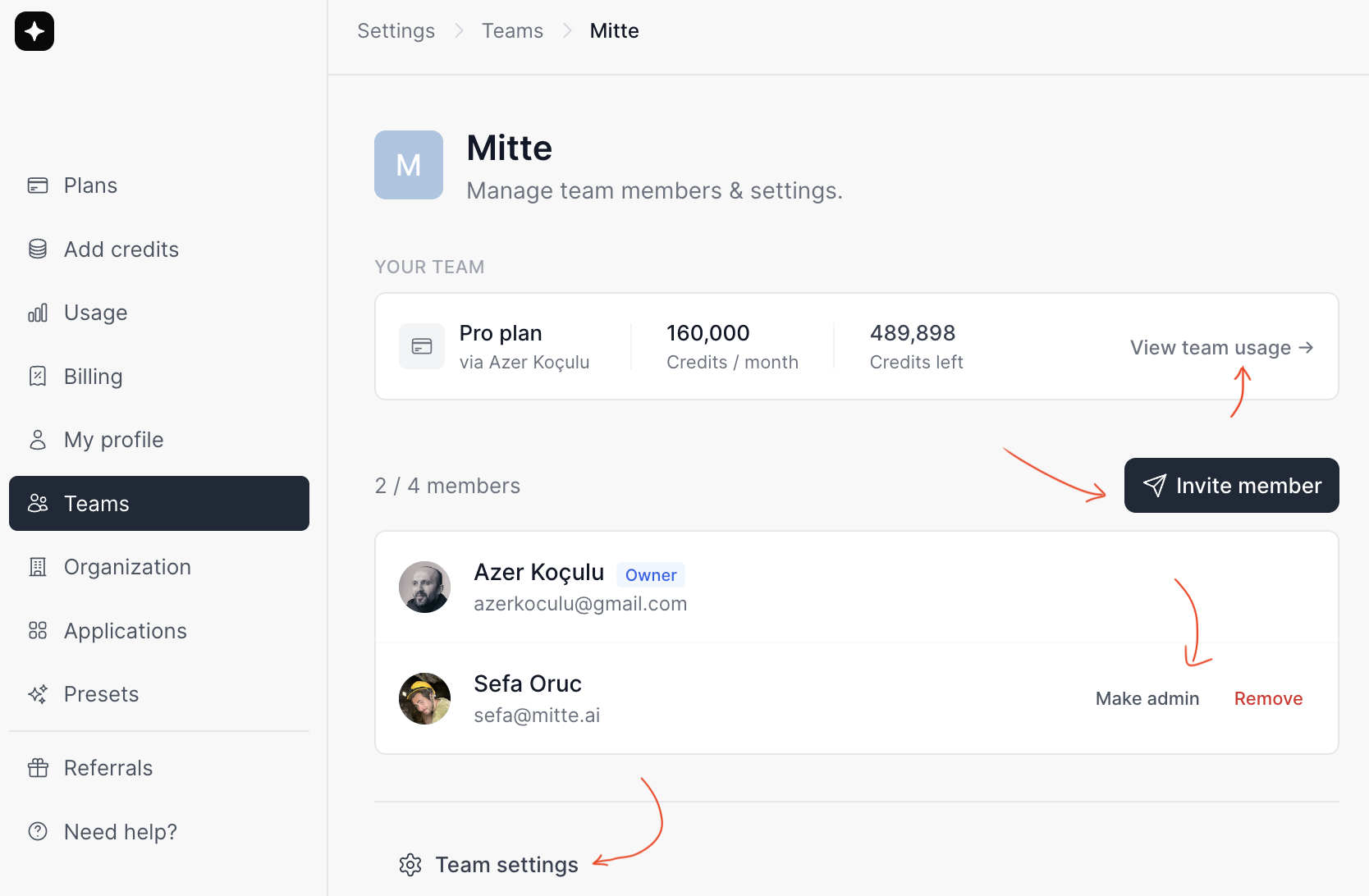
You can add an avatar image, update info, and change the limits of your team by clicking the “Settings” button at the bottom.
Step 5. Team usage
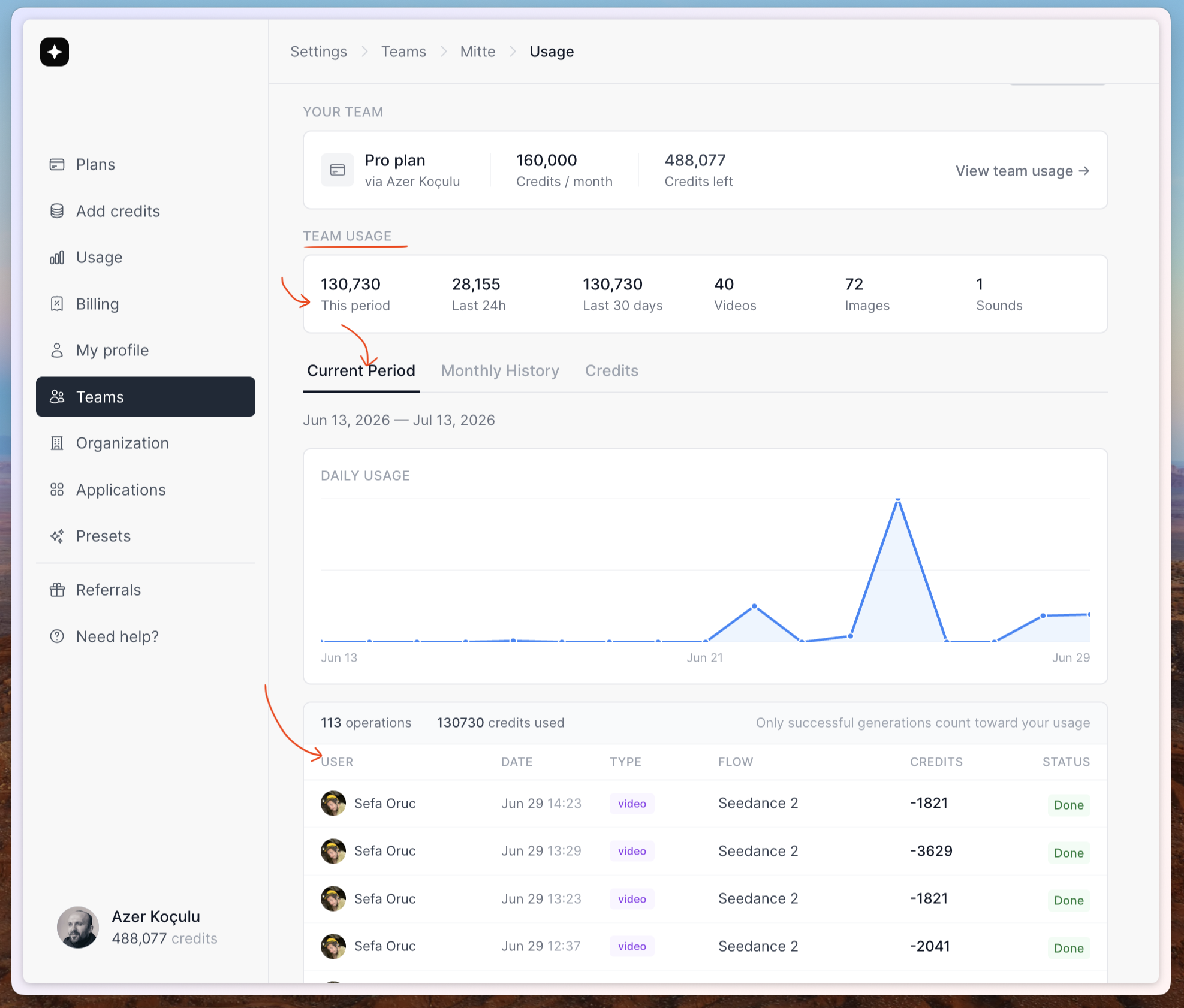
To see how your team consumes the plan, click the “Team usage” link. The team usage page shows a detailed breakdown of how your team spends the plan: who generated what, the credits each job cost, and which models ran.
Step 6. How to share assets with my team?
All assets are private to their original owner by default. To share with your team, add your assets to a shared folder.
Here’s how, in two steps:
1. Create a shared folder
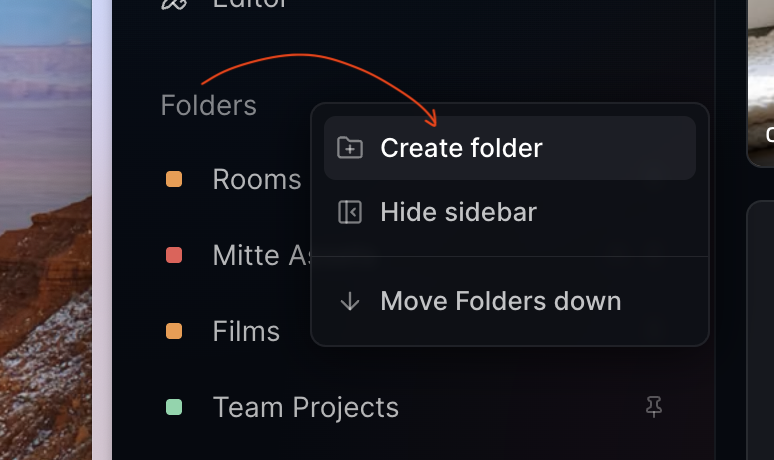
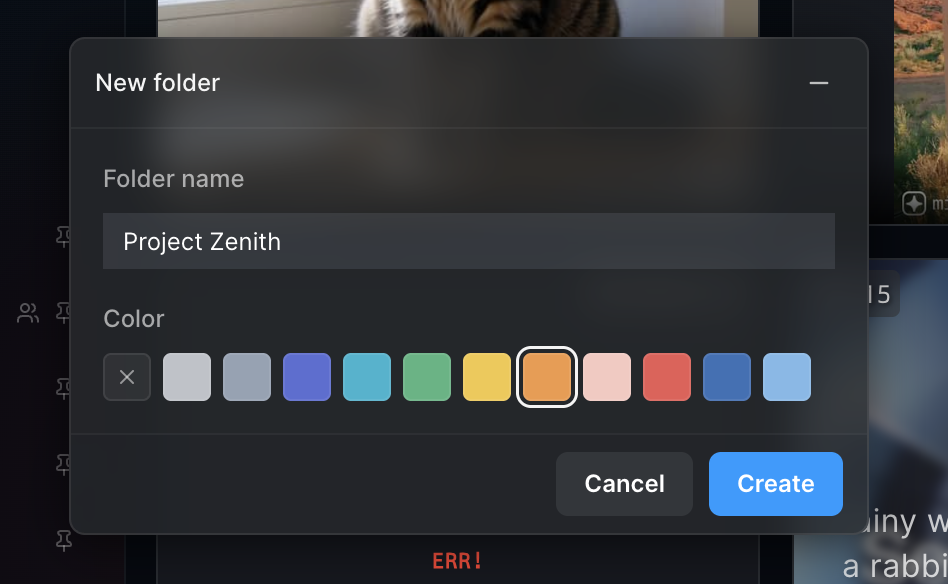
On the left sidebar, right-click and select “Create folder”. This opens a dialog to create the folder. Enter a name and choose a color.
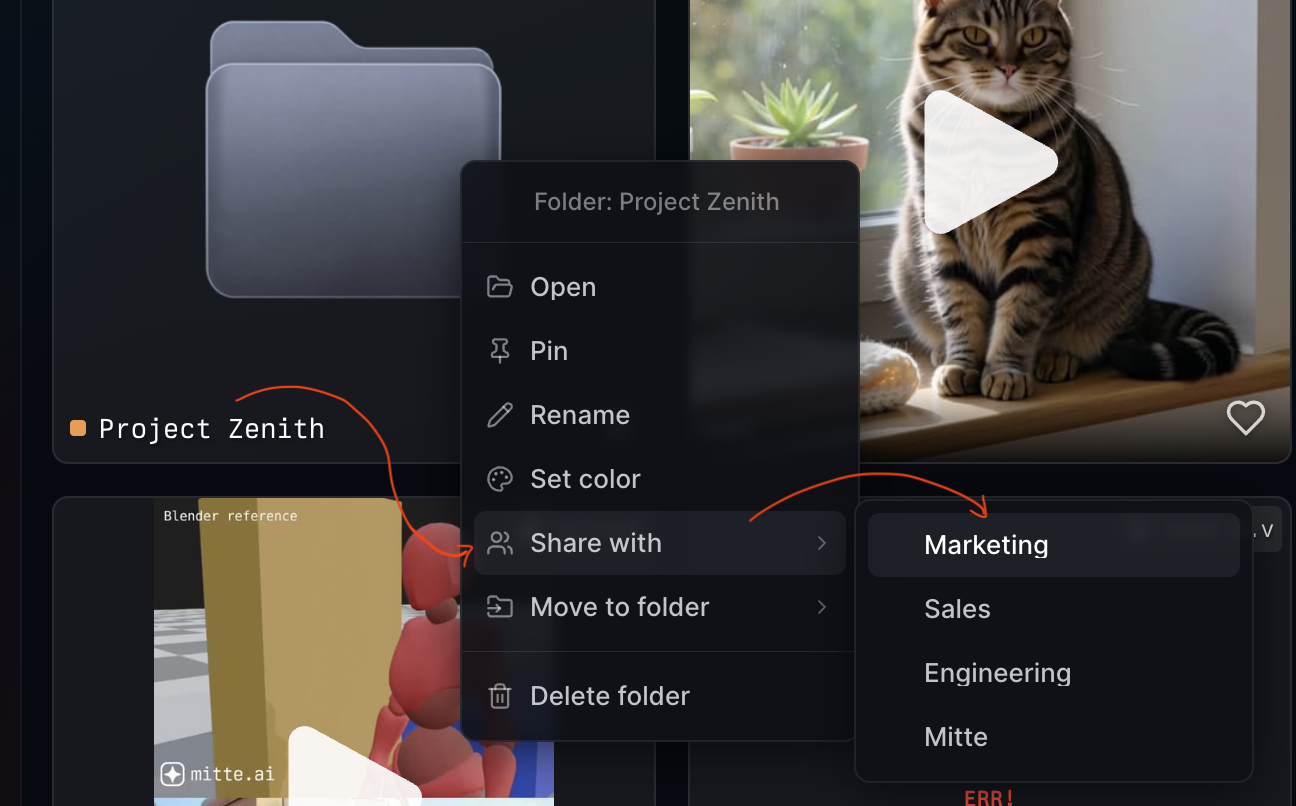
Once the folder is created, share it with your team. Right-click the folder and select “Share with > [your team name]”.
Now all team members will see this folder on their sidebar.
2. Add assets to the shared folder
Drag and drop any of your assets into the folder. Alternatively, right-click any asset and add it to the shared folder.
FAQ
Can my team see my assets?
Not by default. Your assets are private to you. To let the team see them, add them to a folder and share that folder with your team.
Can I set spending limits for my team?
Yes. You can set one of two limits in team settings: a limit for the whole team’s monthly spend, or a per-member limit that gives each member their own monthly allowance. The two are mutually exclusive, so pick the one that fits. Only the owner and admins can change limits.
What’s a team admin?
An admin can manage the team: invite and remove members, change team settings, and set spending limits. The owner is an admin by default. Per-member limits don’t apply to owners and admins, since they run the team.
Who pays for the credits my team uses?
The owner’s plan funds the shared pool. Every member draws from that same pool, and the balance updates live for everyone as work happens.
Do team members need their own subscription?
No. A member can be on a free plan and still generate from the team’s shared pool. If a member has their own paid plan, their work draws from their own credits instead of the team’s.
How many people can I add to a team?
Up to your plan’s team size. The count includes current members plus any pending invites, and you can’t send more invites once you reach the limit.
What happens when we hit a limit or run out of credits?
Generations are blocked once the team pool is empty or a limit is reached. With a per-member limit, only the member who reached their allowance is blocked. The rest of the team keeps working.
Can someone be on more than one team?
Yes. A person can belong to several teams. When they generate, the work draws from the most recent team whose owner has an active team plan.
Can I remove a member later?
Yes. Owners and admins can remove members from the team page at any time. The person keeps their own assets; only their access to the shared team and its folders is removed.