Blender to Seedance 2
Film director and Mitte user Reid Hannaford found a creative way to control his Seedance 2 films: he prepares the scene in Blender, then feeds the Blender clip as a reference to Seedance 2.
This workflow helps him control the camera and character movement with incredible precision.
Here is the full workflow, step by step.
Step 1: Generate a clean start frame
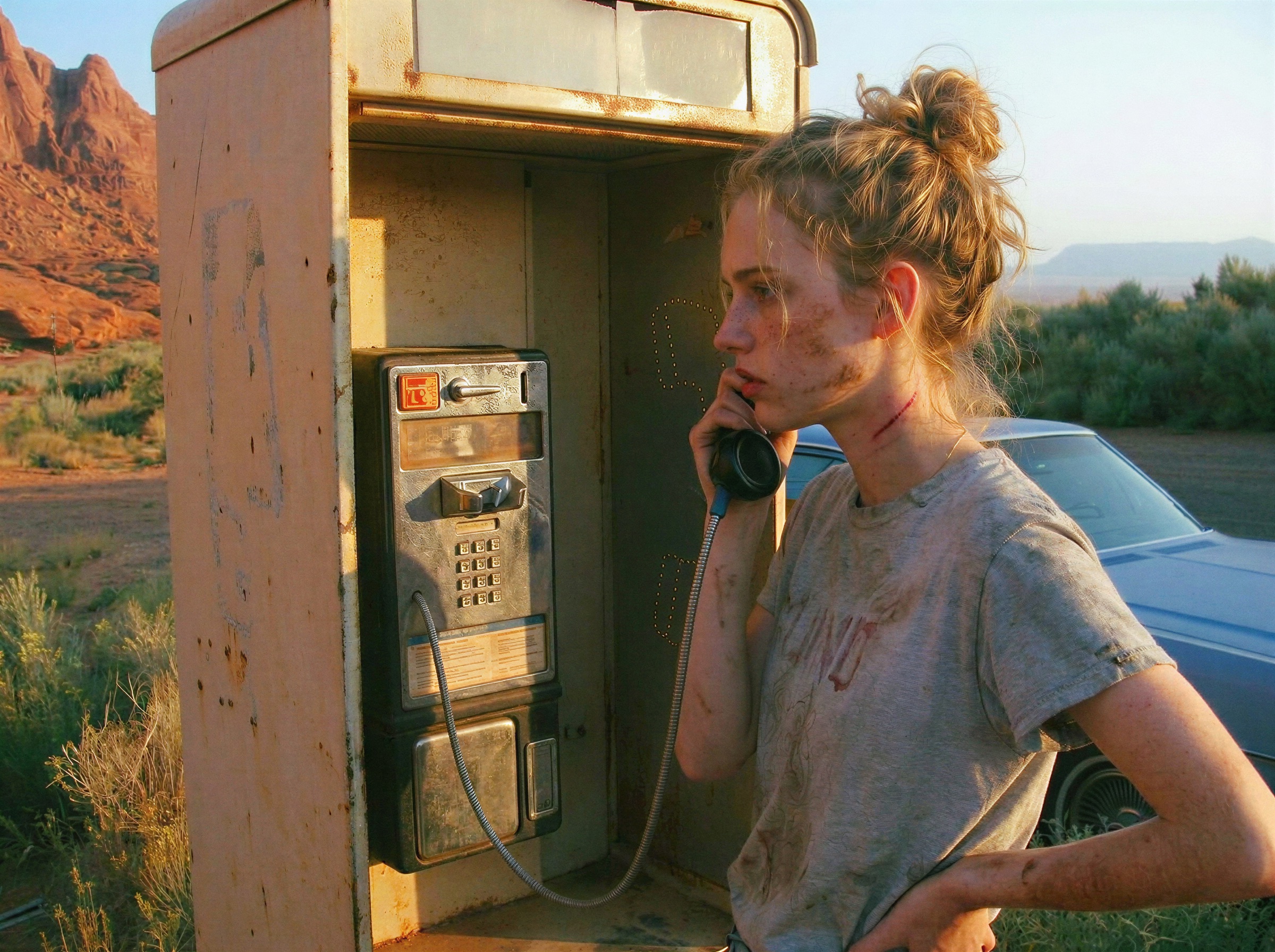
Start with a single still image that sets the look of your shot. You can generate it right in Mitte using an image model like Nano Banana or GPT Image 2. This becomes your clean start frame, the first image Seedance 2 builds from.
Step 2: Match the camera with fSpy
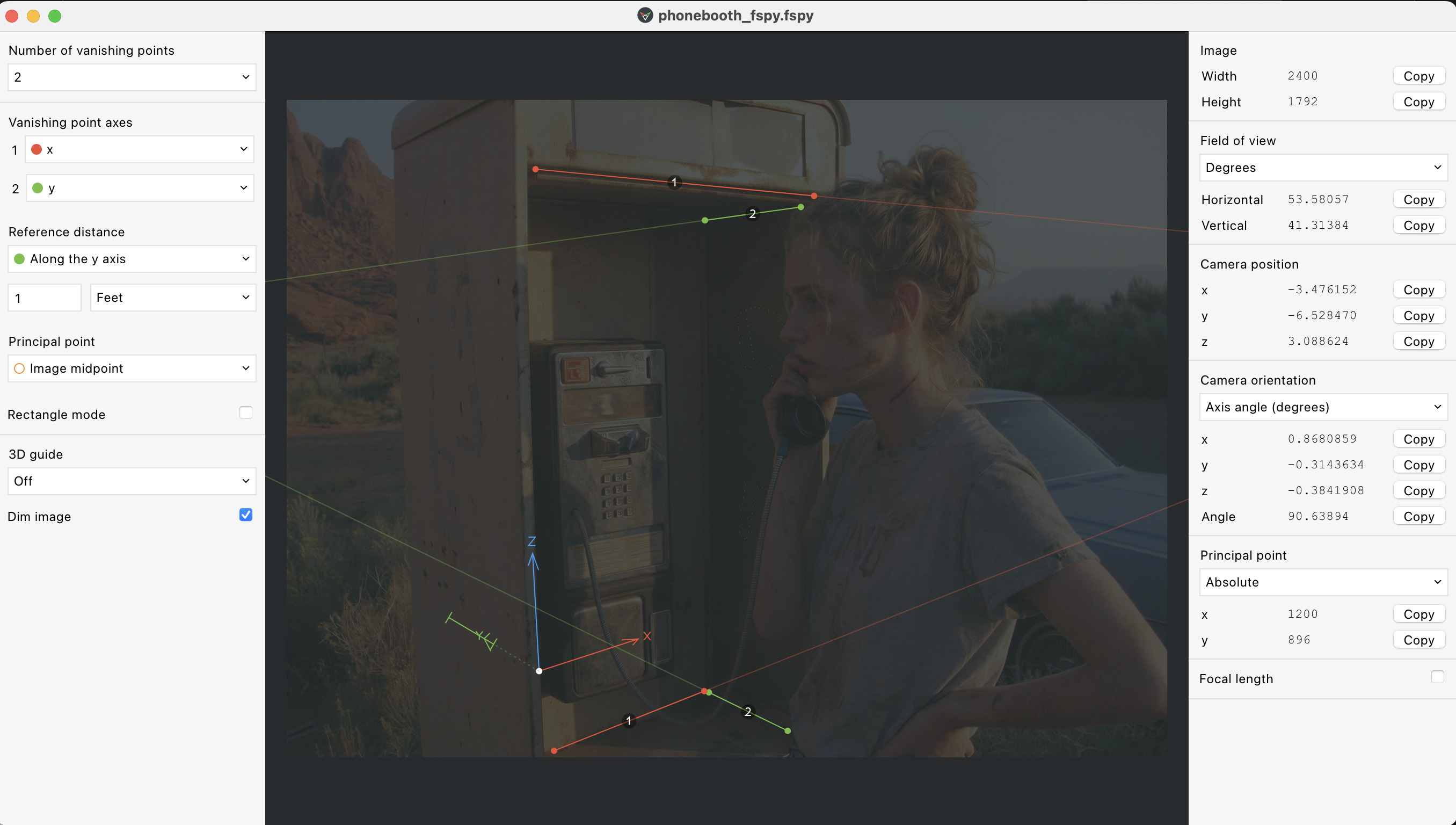
To make your 3D scene line up with that start frame, use fSpy. It reads the perspective of your image and gives you a matching camera in Blender, so your blockout sits in the same space as the photo.
Step 3: Make a basic scene in Blender
Keep it simple. Reid’s blockout is “just cubes and a mannequin.” You don’t need to master 3D, just the basics. Place a few boxes for the set, drop in a mannequin for your character, and you have enough to plan the shot.
Then move the character through space and animate the camera. Reid even hooked up his phone to Blender as a virtual camera to record a real handheld move, which gives the motion a natural, human feel.
Step 4: Export your camera reference clip
Do a quick viewport playblast or render of the move. This rough clip (the gray mannequin walking past your cubes) is the input you will feed to Seedance 2. Keep it short, just enough to show the full move.
Step 5: Feed both to Seedance 2 on Mitte
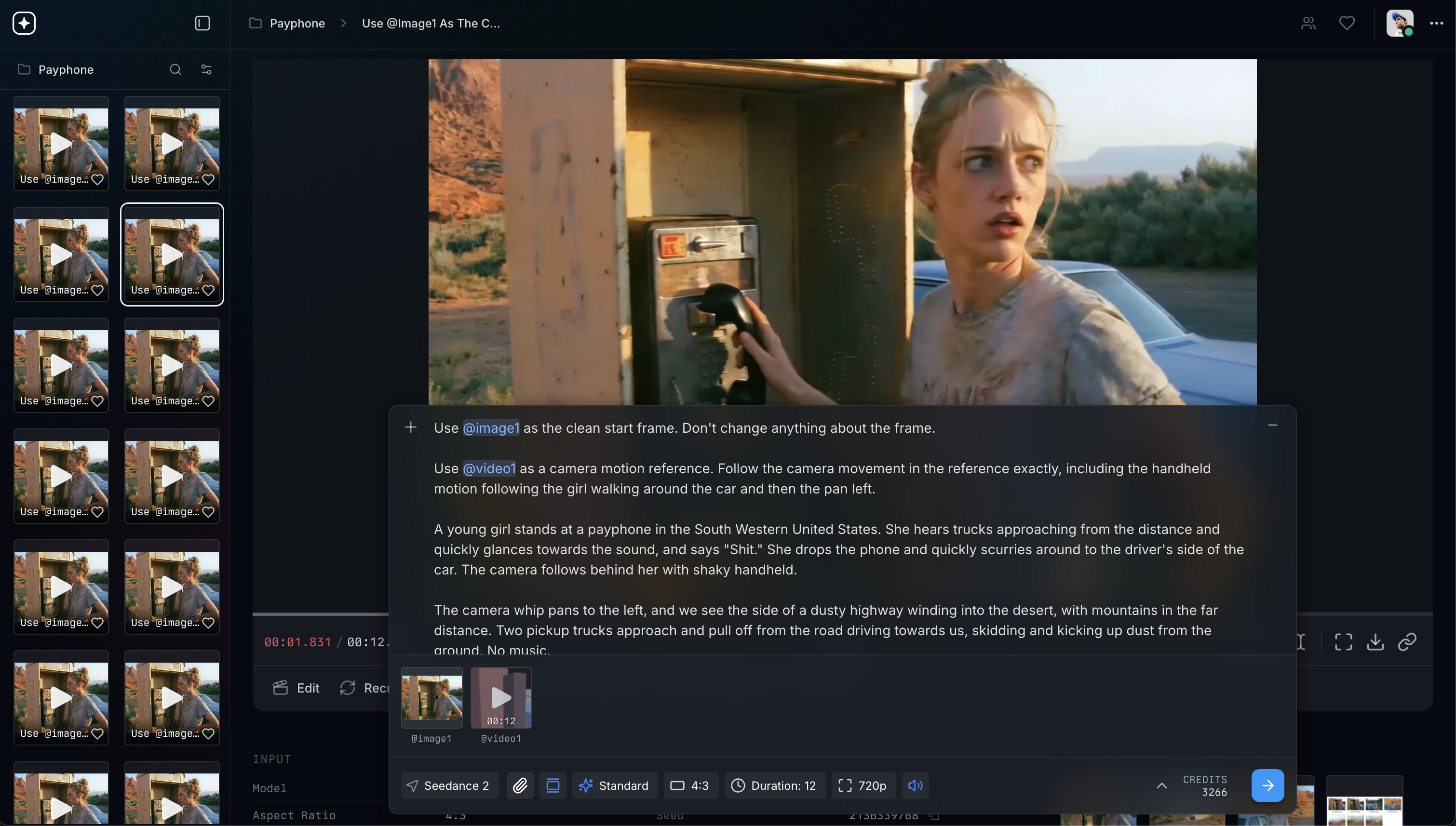
Open Seedance 2 on Mitte. Add your clean start frame as the input image, and your Blender clip as the camera motion reference. Then prompt Seedance 2 to use @image1 as start frame, and follow @video1 as motion reference.
Here’s the prompt Reid user in this example:
Use @image1 as the clean start frame. Don’t change anything about the frame.
Use @video1 as a camera motion reference. Follow the camera movement in the reference exactly, including the handheld motion following the girl walking around the car and then the pan left.
A young girl stands at a payphone in the South Western United States. She hears trucks approaching from the distance and quickly glances towards the sound, and says “Shit.” She drops the phone and quickly scurries around to the driver’s side of the car. The camera follows behind her with shaky handheld.
The camera whip pans to the left, and we see the side of a dusty highway winding into the desert, with mountains in the far distance. Two pickup trucks approach and pull off from the road driving towards us, skidding and kicking up dust from the ground. No music.
Step 6: Iterate and pick your takes
Don’t expect perfection on the first generation. Reid ran 16 takes, tweaking the prompt each time, then spliced together his two favorites into the final shot. Treat each generation like a take on set: review, adjust, and run it again.
Result
Here’s the final result:
Ready to try yourself? Open Seedance 2 on Mitte and direct your first shot.